
Many peple doubt if there are any differences resizing a NTFS and FAT partition, is it more difficult to resize NTFS volumes? In fact, the difference is related to the file system itself, the theory to resize partition is the same, and you cannot see any difference. As NTFS is better than FAT file system and more users choose NTFS partition, so in this article, I'll introduce how to resize NTFS partition in Windows Server 2003 without data loss.
NTFS (New Technology File System) is the standard file system of Windows NT, including its later versions Windows 2000, Windows XP, Windows Server 2003, Windows Server 2008, Windows Vista, and Windows 7.
NTFS provides performance, security, reliability, and advanced features that are not found in any version of the file allocation table (FAT) file system. For example, NTFS guarantees volume consistency by using standard transaction logging and recovery techniques. If a system fails, NTFS uses its log file and checkpoint information to restore the consistency of the file system. NTFS also provides advanced features, such as file and folder permissions, encryption, disk quotas, and compression.
As NTFS is a high-performance file system, almost every administrators fomat both system and drive as NTFS when installing Windows 2003 Server. However, the same with FAT partition, NTFS drive also runs out of space, especially for system volume. This is the reason why people want to resize NTFS partitions. By resizing partitions, you can solve this low disk space problem fast and easily, optimize the disk space usage and improve server performance.
Unlike Windows Server 2008 and later editions, in Windows 2003 Server, you cannot shrink and extend partition under disk management. The only choice to use Windows utility is diskpart, which runs from command prompt.
In Windows Server 2003, the diskpart version is lower, so there is no "Shrink volume" command. So you cannot extend a partition by shrinking another existing drive, instead, you have to delete this drive to get free space.
Another main shortage is, only "NTFS" and DATA partition can be extended, "Extend" command is unavailable for system C drive, learn more about diskpart server 2003.
To resize Windows 2003 NTFS partition, you need 3rd party program, such as Acronis disk director, Partition Magic Server, Partition Assistant Server, etc.
In technical forums, many professionals recommend Partition Magic Server. Based on the built-in Enhanced Data Protection technology and Disk Partition Copy Wizard, you don't need to worry about data safety. Furthermore, It is able to extend NTFS system partition without rebooting to maximize the server performance and minimize the downtime of the server. That is to say, you can resize Server 2003 NTFS partition without offline.
Step 1, Launch Partition Magic Server, you'll see all disks and partitions that connected to your Server and the layout is similar with Disk Management.
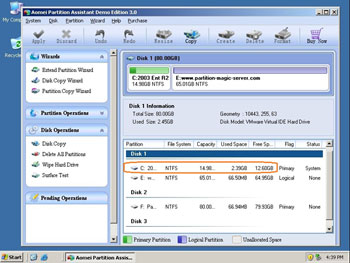
Right-click the next contiguous data drive and select "Resize Partition", in the pop-up window, drag the left border rightwards to shrink it.
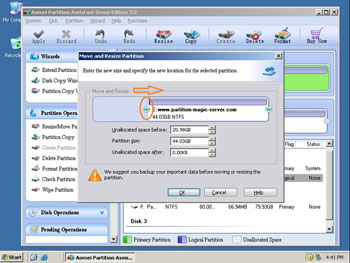
Click OK and back to main window, there will be some Unallocated space behind the system C: drive.
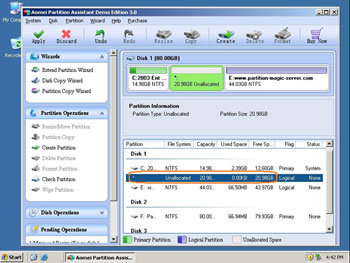
Step 2, Right-click the system partition and select "Resize Partition", in the pop-up window, drag the right border rightwards to hold the Unallocated space.
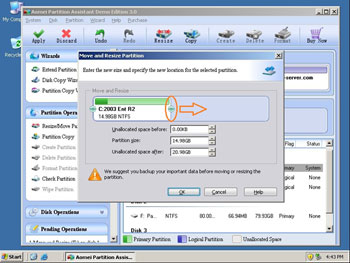
Click OK and back to main window, press "Apply" on top left to proceed.
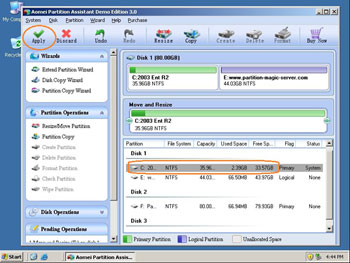
If you want to extend C: drive by taking free space from noncontiguous data drive, there is an easier way, you just need to select which drives to shrink and extend without dragging and moving by yourself, see how to resize Windows 2003 Server partition.
For enterprise users, Unlimited Edition allows unlimited installation within your company to save time and money.


 30-day Money Back Guarantee
  Secure Shopping
  Recommended by Millions
  7*24 Live Chat
  SSL Encrypted



Copyright © 2008-2015 Partition-Magic-Server.com ALL RIGHTS RESERVED.
Partition Magic ® is a registered trademark of Symantec Corporation.
About | Privacy Policy | EULA | Terms Of Use | Contact | Uninstall