
Shrink/extend volume on Windows Server 2008 R2
Updated on: October 29, 2024
All disk partitions are allocated by OEM manufacturer or when building the server, but the scheduled size may not always meet your needs, for example:
- System partition was created too small and no free space left after a long time.
- To manage files more effectively, you need to shrink the large partition and create more smaller ones for different usage.
- A data partition is too small, but files keep going into it.
Better than previous version, Windows Server 2008 Disk Management console has new feature – “Shrink Volume” and “Extend Volume”, which can be used to decrease and increase partition size. However, you cannot extend the system C drive by shrinking other data drive in this console. In this article, I’ll show you how to shrink volume and extend volume on Windows Server 2008 R2.
Overview:
How to shrink partition on Windows Server 2008?
– Steps to shrink partition under Disk Management
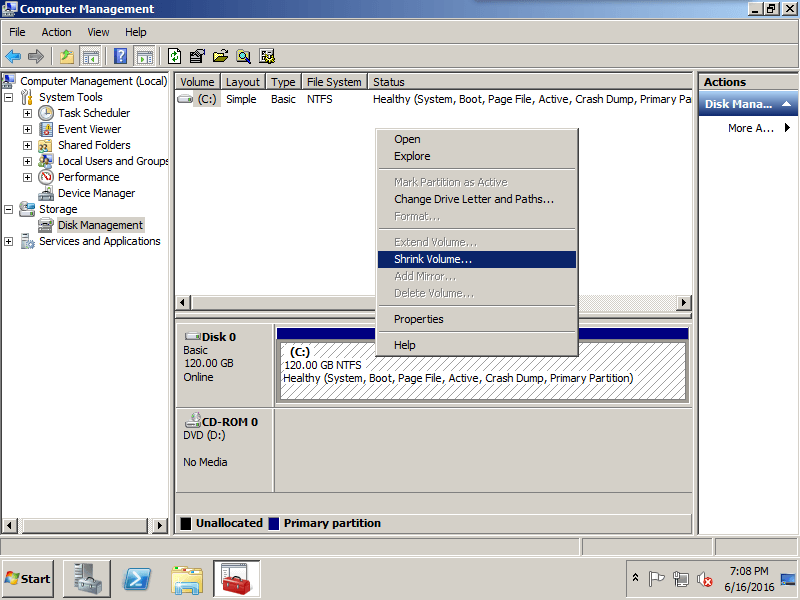
Step 1: Click Server Manager next to Start on bottom left to open Disk Management console. Right click the partition and select “Shrink Volume“.
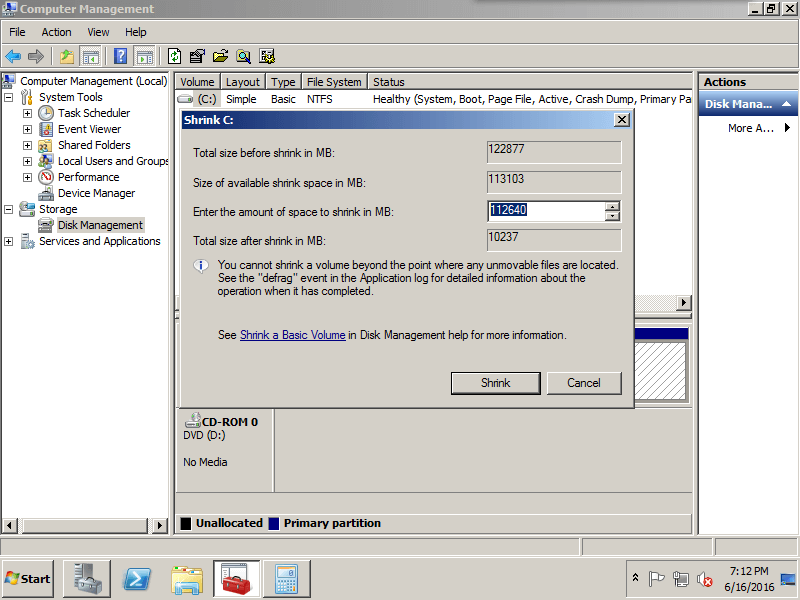
Step 2: In the pop-up window, type the value how much free space to shrink from the C drive.
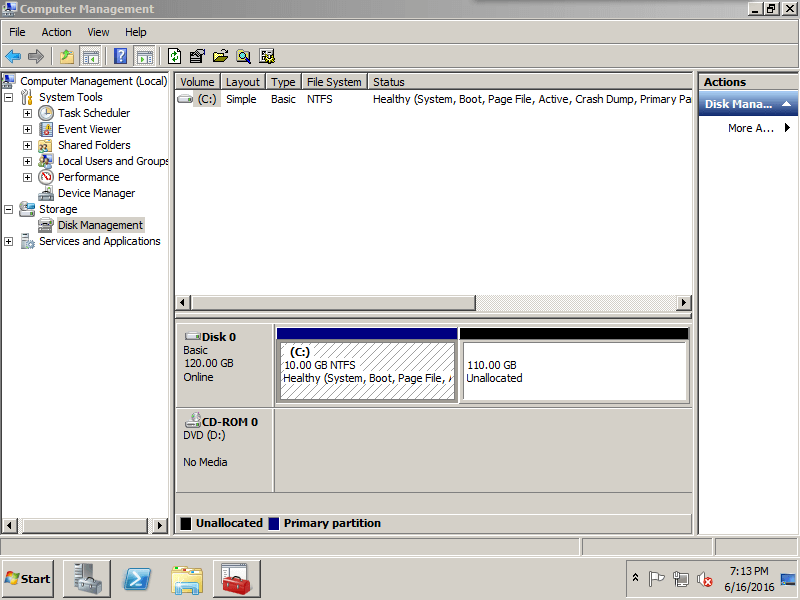
Step 3: Click “Shrink” and the operation complete in a short time. Original 120GB C drive becomes 10GB and the unused space becomes Unallocated.
– Steps to shrink Server 2008 partition with safe software
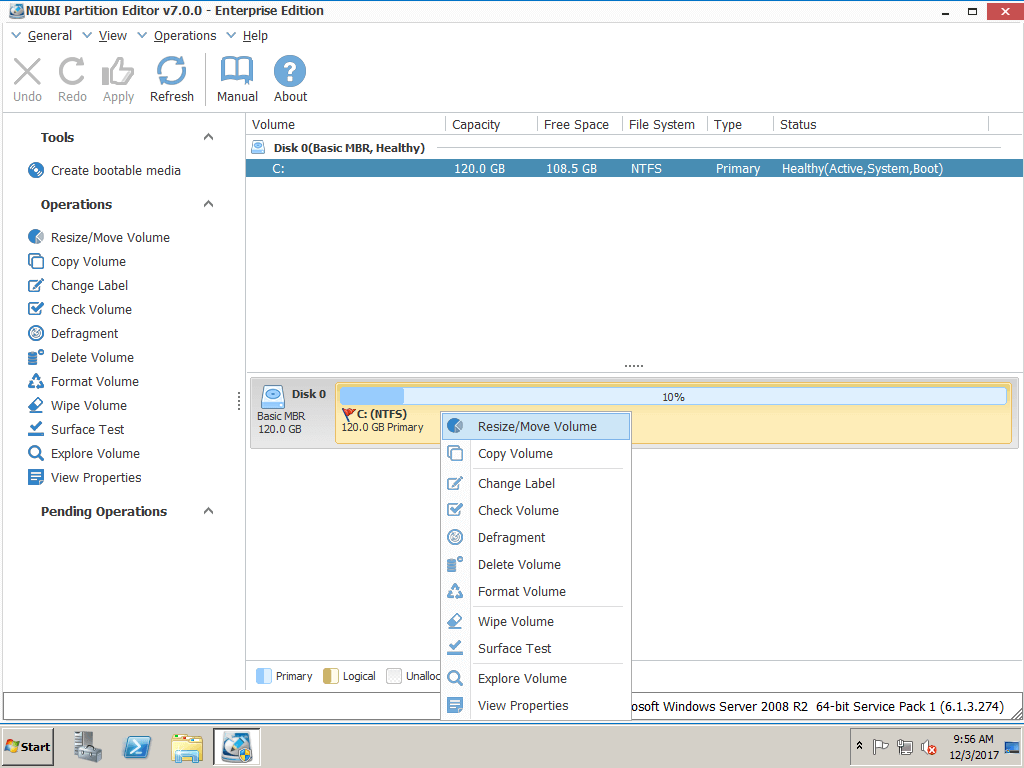
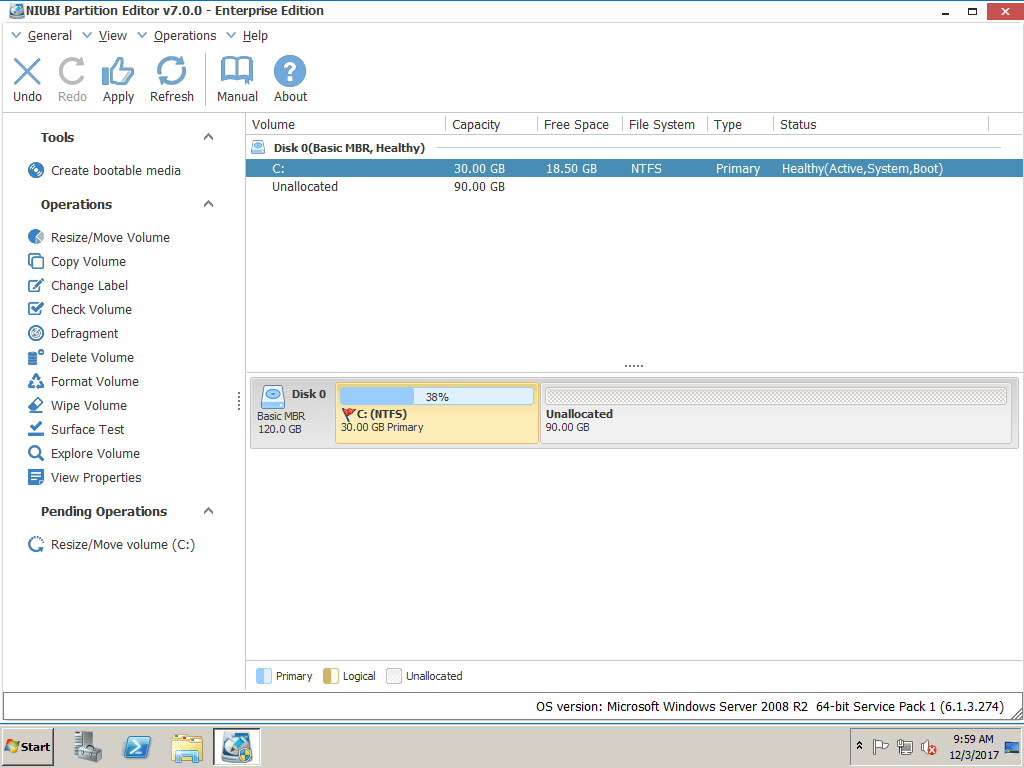
Step 1: Launch NIUBI Partition Editor and you’ll see the disk partition layout, which is similar with Disk Management. Right click the partition you want to shrink and select “Resize/Move Volume” feature.
Step 2: In the pop-up window, drag right border leftwards to shrink this partition.
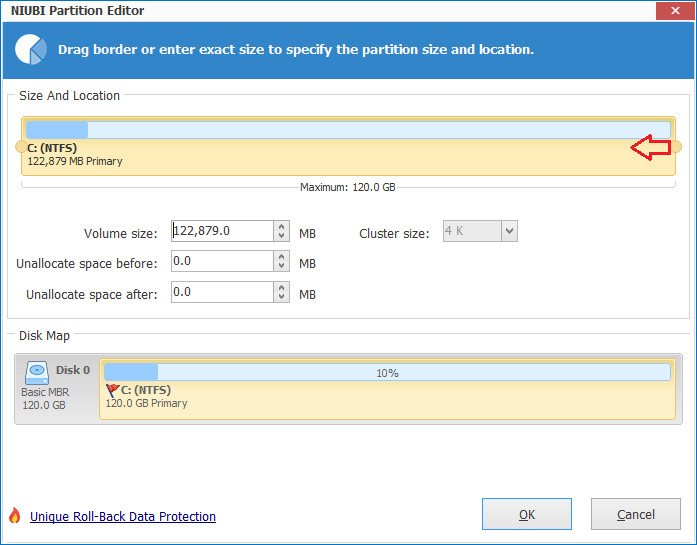
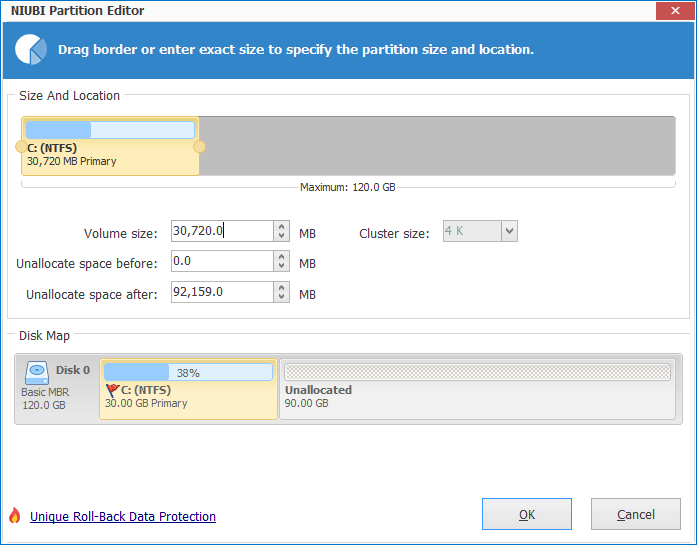
Step 3: Click OK and back to the main window, where you’ll see that original C drive shrank to 30GB and the unused space becomes Unallocated. Click “Apply” button on top left to execute.
Compare with Disk Management and third party software
- When you shrink a partition, unmovable files (for example, the paging file or the shadow copy storage area) are not automatically relocated and you cannot decrease the allocated space beyond the point where the unmovable files are located. In this case, you can only shrink a little space.
- When you shrink a partition, the Unallocated space can only be created behind it.
- The Unallocated space shrank from a partition can only be used to create new partitions.
- You can shrink volume to any size, because it is able to move files.
- You may drag either left or right border of this partition to shrink, so the Unallocated space can be created before or behind this partition.
- Besides creating new partitions, the Unallocated space can be used to extend any drive in the same disk.
How to extend partition on Windows Server 2008 r2?
– Steps to extend partition under Disk Management
Step 1: Right-click the partition you want to extend and select “Extend Volume…”
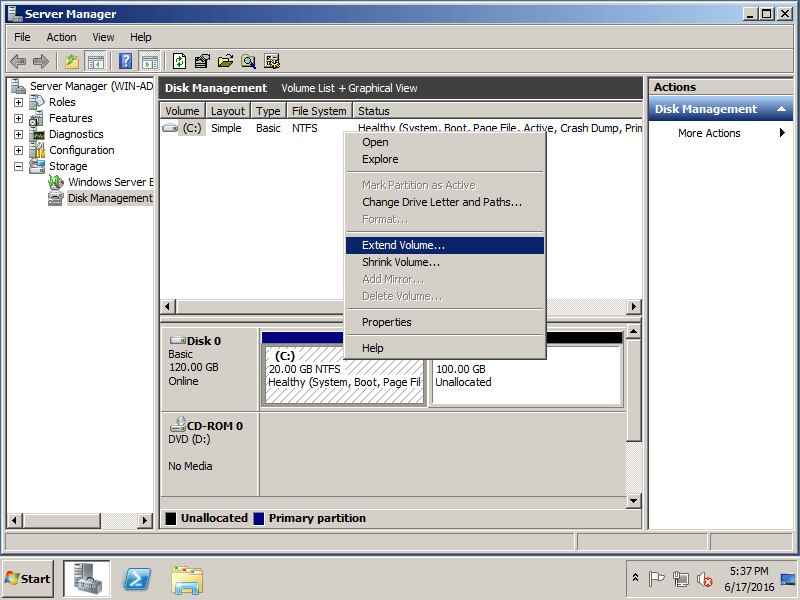 Step 2: In the pop-up window, type the value how much space to add to C drive and click Next.
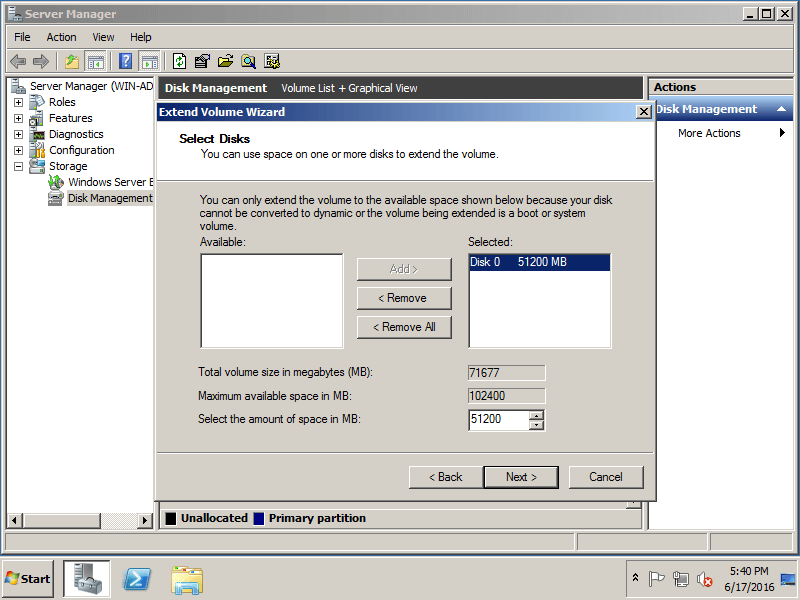
Step 3: Confirm the operation and click “Finish” to proceed.
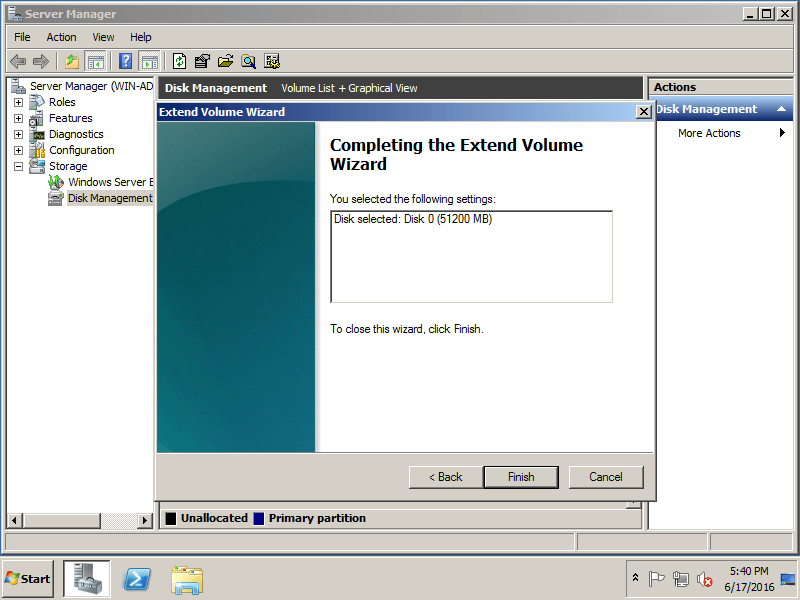
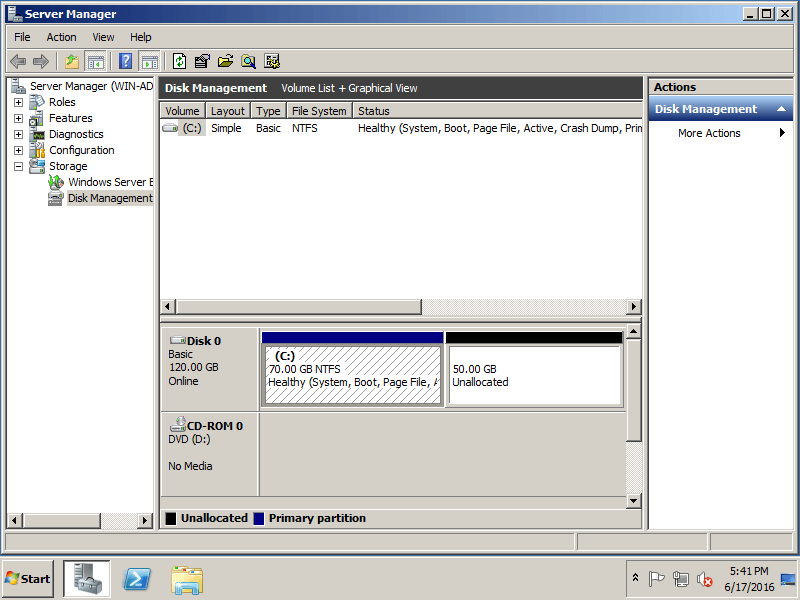
The extending operation complete in a short time.
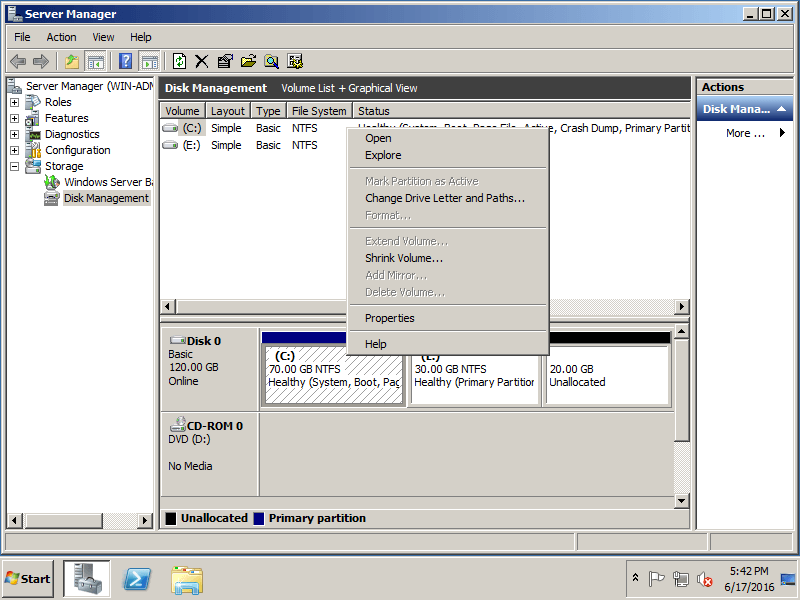
From the screenshot, when you right click C drive the “Extend Volume” is grayed out. The 20GB Unallocated space can only be used to extend drive E.
– Steps to expand Server 2008 partition with NIUBI Partition Editor
Step 1: Right click the drive that has plenty of free space and select “Resize/Move Volume“.
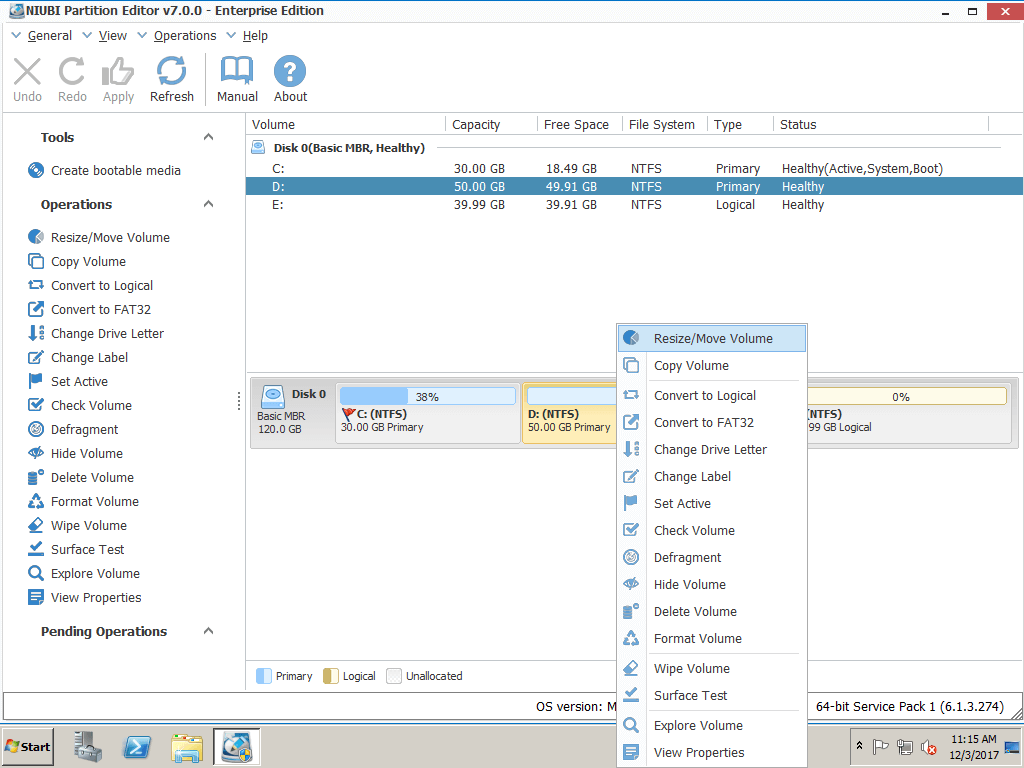
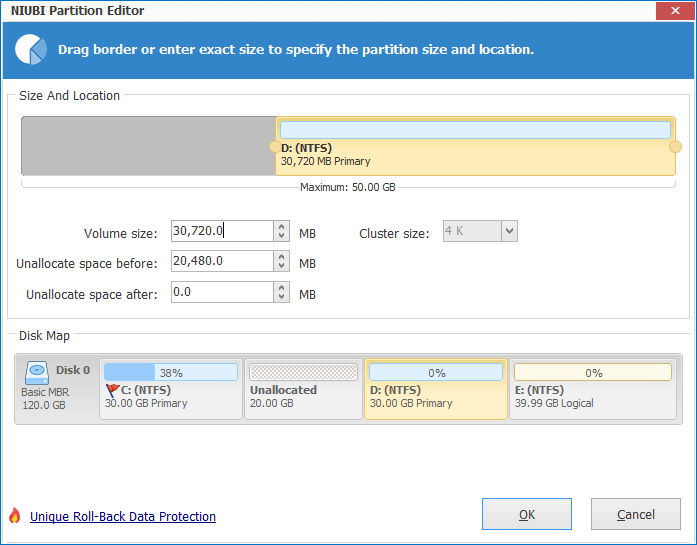
Step 2: In the pop-up window, drag the left border rightwards to generate Unallocated space.

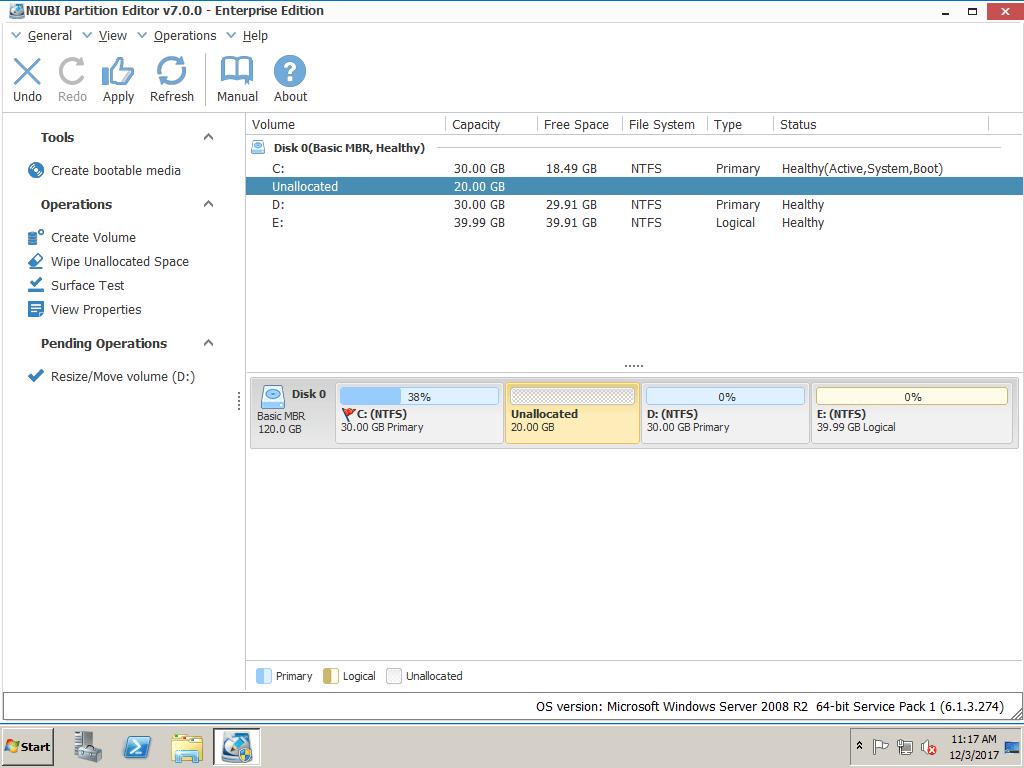
Click OK and back to main window, where you’ll see 20GB Unallocated space created behind C: drive.
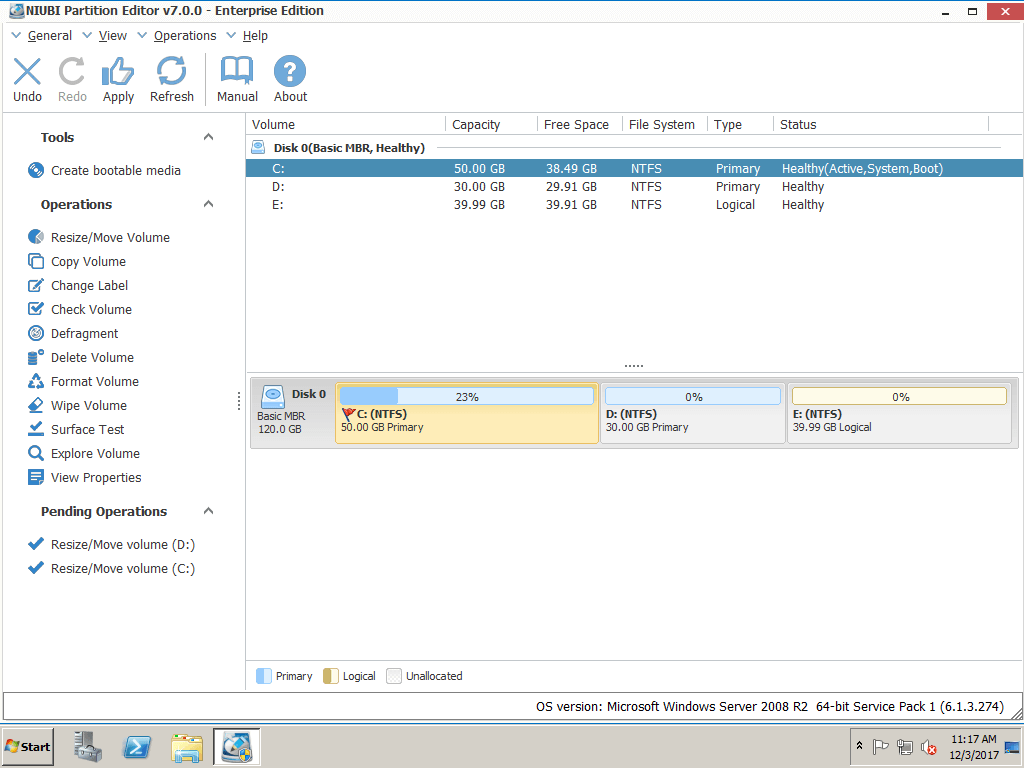
Step 3: Right click C: drive and select “Resize/Move Volume” again. In the pop-up window, drag the right border rightwards to hold the Unallocated space.

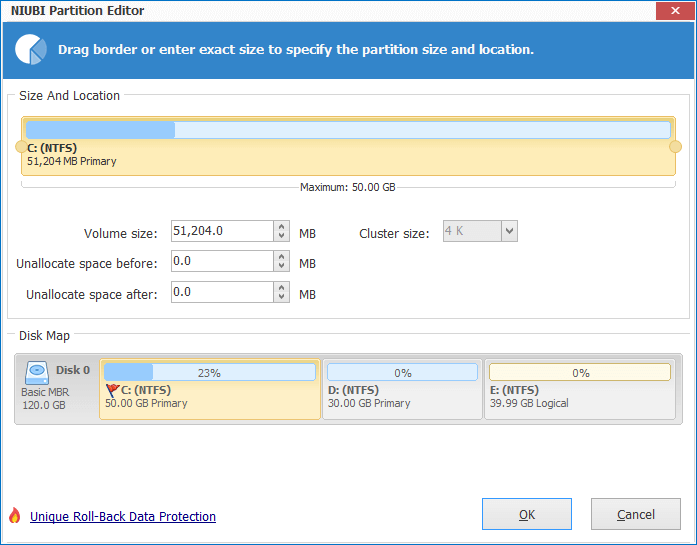
Step 4: Click OK and back to the main window, where you’ll see the 20GB Unallocated space added into C: drive. Click Apply on top left to execute, done.
Compare with disk management and 3rd-party software
- Server 2008 Disk Management can only extend a volume when there is adjacent Unallocated at the right side.
- 3rd-party software has the ability to move the Unallocated space, so it is able to extend C drive by shrinking any other data drives.
Video guide to shrink and extend volume on Windows Server 2008