
Free Up Space
Windows Server 2003
How to free up disk space in Windows 2003 Server
Today’s hard drives feature jaw-dropping amounts of space, but no matter how big your drive, you’ll be amazed how quickly application/Windows update, browser caches, and temporary files eating up your free space and clutter your system. Windows created the low disk space warning to alert computer users when their hard drive is running low on available disk space.
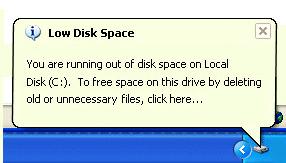
Windows 2003 Server low disk space will cause many problem, such as:
- System runs much slower.
- You cannot install any applications or Windows updates.
- System crash if extremely low free space remains.
You’d better fix this problem as fast as possible, as no one wants to see the System crash, in that case, you have to start over and keep the Server under downtime for a long time.
When Windows 2003 Server low disk space warning pops up, the first thing you need to do is freeing up disk space.
Steps to free up disk space
Step 1: Delete old temp files in Local Settings\Temp.
This step is probably one of the most effective steps in helping you recover the most hard disk space.
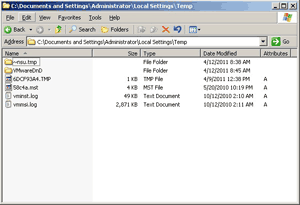
In Windows 2003 Server, the Temp folder path is “C:\Documents and Settings\Administrator\Local Settings\Temp”. If you cannot find the Local Settings folder, that is because the folder is hidden. Just copy the address above, change “Administrator” to your Username and paste it into the address bar.
Step 2: Free up space with Windows Disk Cleanup
Open “My Computer”. Right click on the drive that you want to free up space, and select Properties. Click on the Disk cleanup button.
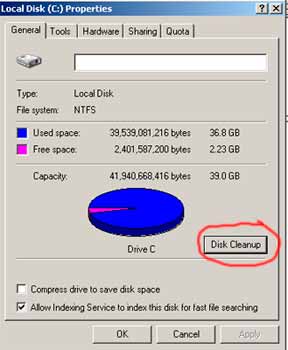
After a couple of minutes, you will be shown a list of options where you can free up hard disk space from. In this window, you may also select “Compress drive to save disk space” option to compress files and release some free space.
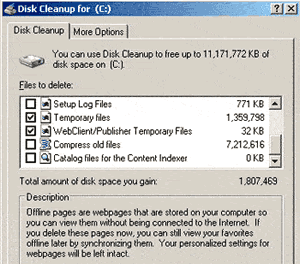
Step 3: Free up space by deleting Internet temp files
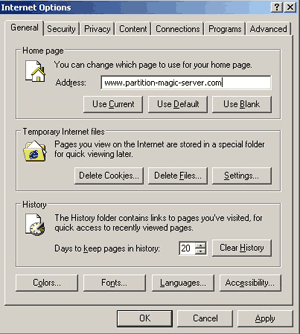
Every brower has its own way to delete these files, you may open its options setting and delete these files.
Step 4: Moving page files
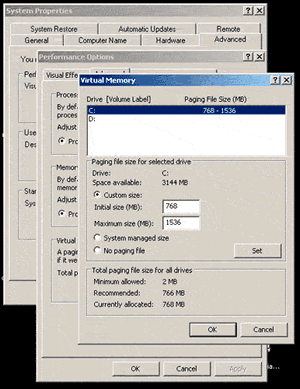
Paging file is an area on your hard disk where Windows uses it as a RAM. Generally speaking, this paging file is located in your C drive and can take up to 1 or more GB. It is ideal to place this file in the C drive instead of other drives because it is faster to access it from C. This is not a recommended step but it works.
To open this setting, right-click My Computer > Properties > Advanced > Settings under Performance > Advanced > Change.
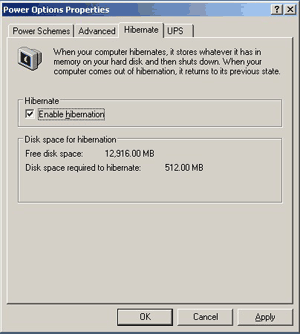
Step 5: Disable Hibernation
Hibernation doesn’t come cheap – it requires at least 512MB depending on your system. If you enabled this option, disable it and more free disk space was freed up.
After these steps, you can free up some disk space in Windows 2003 Server, but generally, these tools take a long time to run and cannot free up large amount of space, they just help you disable Windows 2003 Server low disk space alert temporarily, the permanent way to solve this problem is extending the C drive. That is to say, shrink other existing data partitions to get some free space and then add to the system C drive. Operating system, applications and all files keep the same after resizing partitions.
Video guide to add free space to C drive