
How to extend system C drive in Windows Server 2003 without data loss?
More and more Windows updates and applications installed to the system C: drive, very quickly, C drive becomes full and “Low Disk Space” warning pops up. If there is not enough free space in the system partition, Operating System runs much slower immediately and you cannot keep the server up to date. The worst, system crash if extremely low free space remains.
The experienced server administrator know the easy and fast way to solve this problem is resizing partitions, but all partitions have been allocated when building the server, is it possible to extend Server 2003 C drive without losing data? Yes, after reading this article you’ll know how to do this.
Which utility to re-size partitions
Unlike Windows 2008 Server, there is no “Extend Volume” feature integrated under Server 2003 Disk Management. Windows 2003 built-in diskpart command cannot extend system/boot partition, so to extend C drive in Windows 2003 Server, you need third party partition software, such as NIUBI Partition Editor.
Better than other tools, it integrated unique Roll-Back Protection technology, which is able to roll back the server to the status before resizing, even if power failure or any other hardware issue occurred during resizing. Different with read-only software, to resize disk volumes, partition software will move all files to other locations, modify the system information in MBR, DBR and other place. If power failure or any issue occurred while these operations, it is very likely to cause system boot failure, partition damage and data loss. This is the reason why NIUBI Partition Editor is recommended as safest partition software for Windows Server.
Besides, its unique file-moving algorithm helps resize partition 30% -300 faster than other tools, which is strictly tested. It saves much time if there are large amount of files in the volume that you want to resize.
How to extend C drive in Windows Server 2003
It is very easy, simply click and drag to operate. If there is existing Unallocated space or free space in any other volumes of the same disk, you can transfer these space into C drive.
The most common situation in a server is that C drive filling up but there is plenty of free space in the adjacent volume D, so here I introduce how to expand C drive by shrinking D.
Steps to expand C drive on Server 2003:
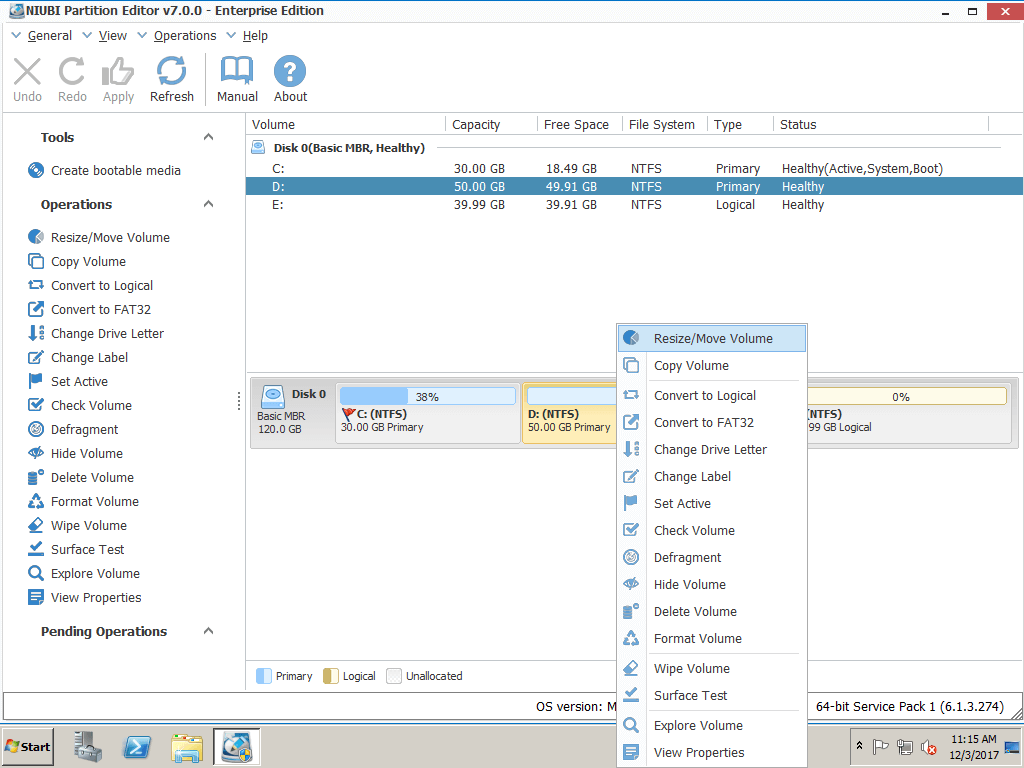
Step 1: Download and install NIUBI Partition Editor, right click drive D: and click “Resize/Move Volume“.
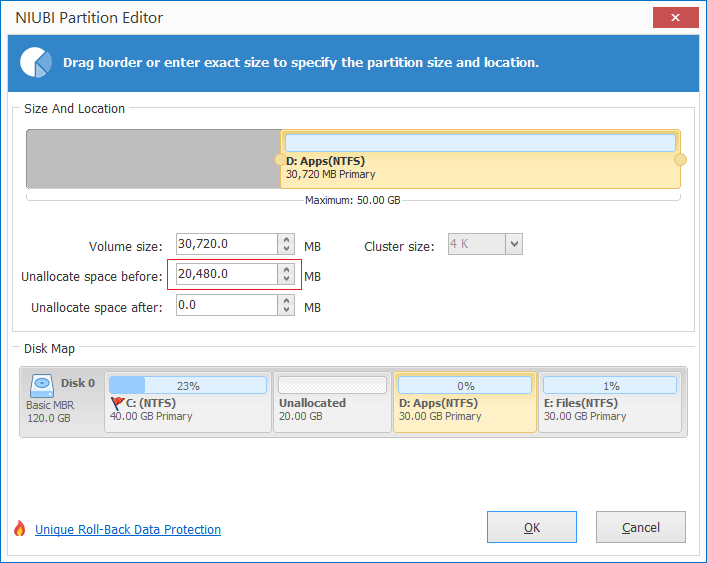
Step 2: In the pop-up window, drag the left border rightwards to generate free Unallocated space.

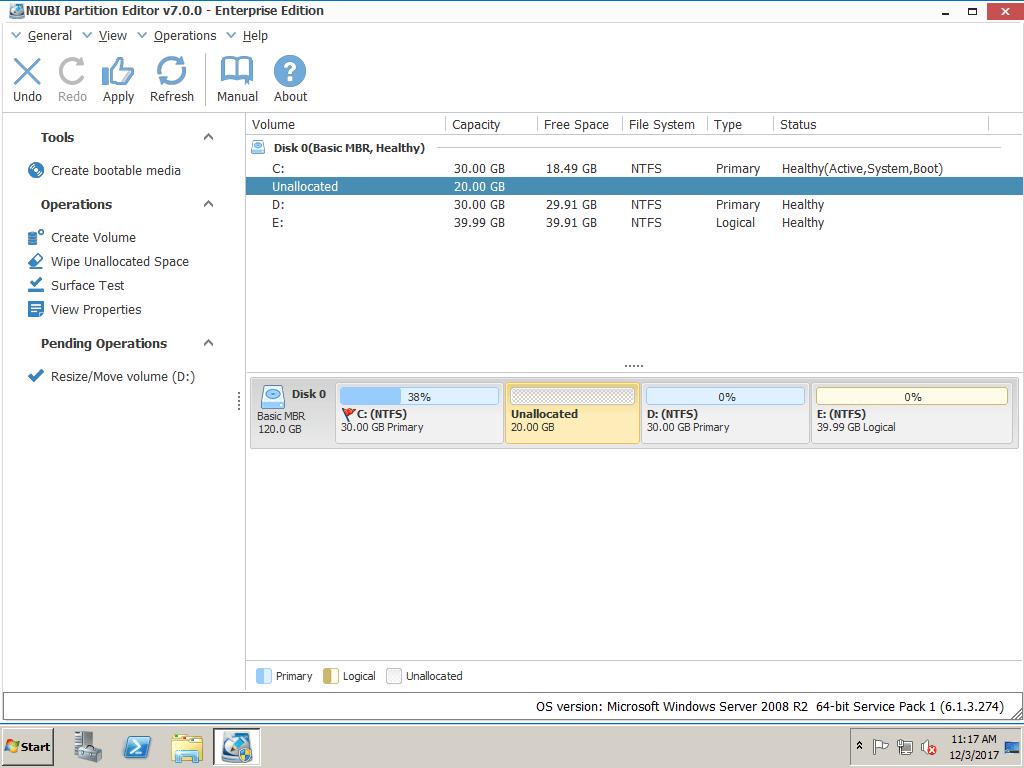
Click OK and back to the main window, where 20GB Unallocated space created behind C: drive.
Step 3: Right click C drive and select “Resize/Move Volume” again, in the pop-up window, drag the right border rightwards to hold the Unallocated space.

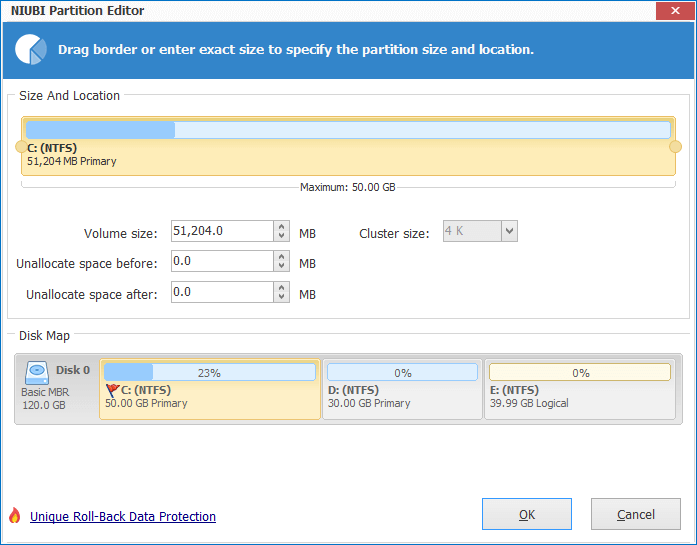
Click OK and back to the main window, where C drive extended to 50GB by holding the 20GB free space from D. Press Apply on top left to execute, done!
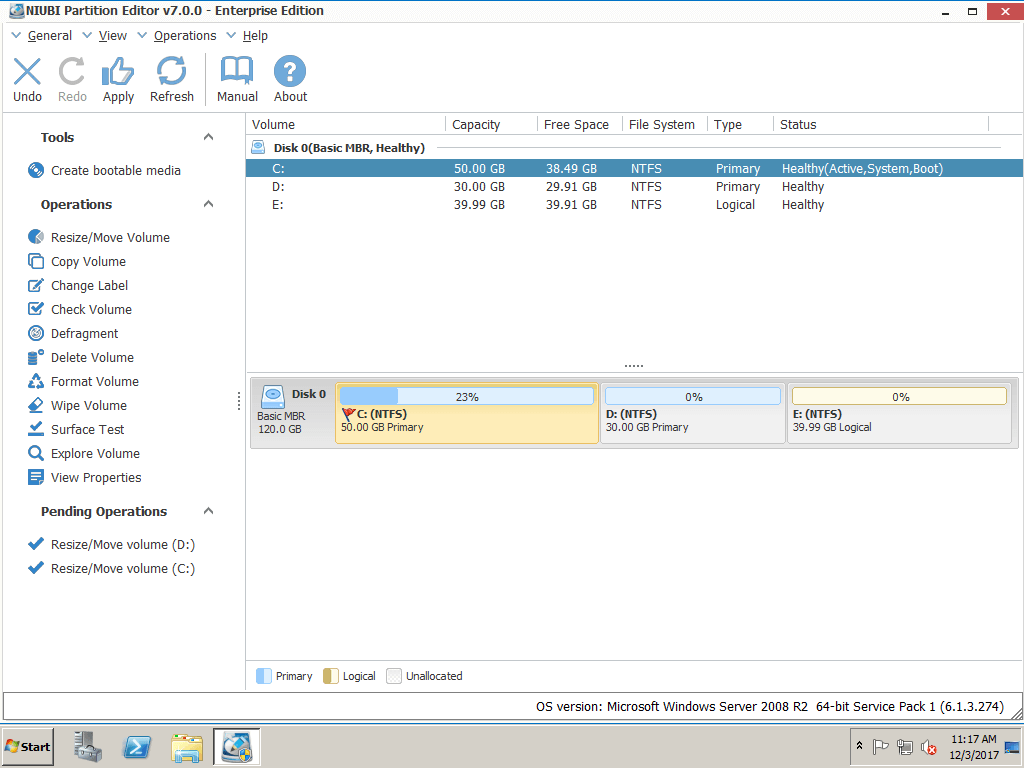
If there is not enough free space in D, you may get free space from other drive in the same disk. For example: shrink volume E: to generate Unallocated space behind D, you just need an additional step to move D. (right click D and select “Resize/Volume Volume”, drag middle position rightwards in the pop-up window.)

In Summary
Windows built-in Diskpart command cannot help you, to extend C drive in Windows Server 2003 (R2), you need server partition software. Actually it is very easy, as long as there is free space in any drives in the SAME disk, you can expand C drive. Operating System and data keep the same after resizing, except partition size changed.