
How to resize RAID 5 partition without data loss?
RAID 5 array is different with a physical disk partition, and it is used for servers, so many people worry about resizing RAID 5 virtual drive. Actually, it is very easy and safe to resize RAID partitions if you use the reliable tool and follow the right steps. Here I’ll show you how to resize RAID 5 partition on Windows Server 2016/2012/2008/2003 R2 without reinstalling Operating System or losing data.
Overview:
Benefits of RAID 5
RAID 5 is seen by many as the ideal combination of good performance, good fault tolerance and high capacity and storage efficiency. It is best suited for transaction processing and is often used for “general purpose” service, as well as for relational database applications, enterprise resource planning and other business systems.
Low Disk Space on RAID 5 array
RAID 5 array is much better than physical hard disk in many parts, however the same with physical disk drive, RAID 5 virtual partition also runs out of space. Some people create a single RAID 5 array for both Operating System and data, but others may use it for storage only. To the system partition, Windows updates, temp files, applications, caches and many other types of files eat up free space very quickly. To a storage data drive, database file grows rapidly.
When the RAID 5 array is out of free space, it cannot be better if you can resize the virtual partitions directly, because it’ll save much time. Otherwise, you have to rebuild the RAID array, reinstall Operating System and large amount of applications. No matter you want to resize RAID 5 system partition or data volumes, Partition Magic Server helps complete this task easily and safely.
Difference resizing RAID array and physical drive
Here I do not want to waste time talking about the difference between a RAID array and physical disk. About resizing partitions, there is no difference! To Operating System, the hardware RAID array is the same with a physical hard disk.
How to resize RAID 5 volumes?
– If there are several virtual partitions in the same RAID-5 array, you can simply extend the system C drive or data drive by taking free space from another RAID 5 volume. In this condition, DO NOT break the RAID array or do anything else in the raid controller, just resize the RAID 5 partition like physical HDD.
– If there is no free space in all other virtual drives on the RAID 5 array, you may add a new disk to this RAID 5 array. After that the new disk space will be displayed as Unallocated at the end of the raid array, then you can extend partition with the new disk space.
If you do not know whether the virtual drives are in the same RAID array, open Disk Management console by pressing Windows+R to open Run, type diskmgmt.msc in the empty box and tap OK.
Steps to resize RAID 5 partition:
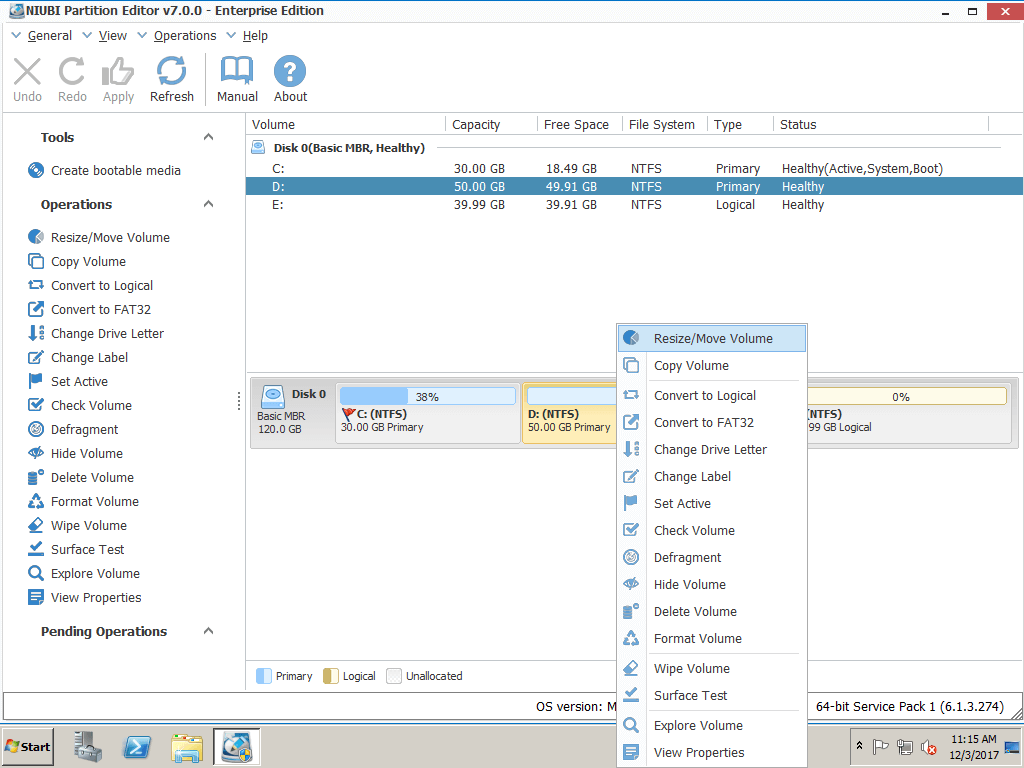
Step 1: Download and install NIUBI Partition Editor Server Edition, right click drive D: and click “Resize/Move Volume“.
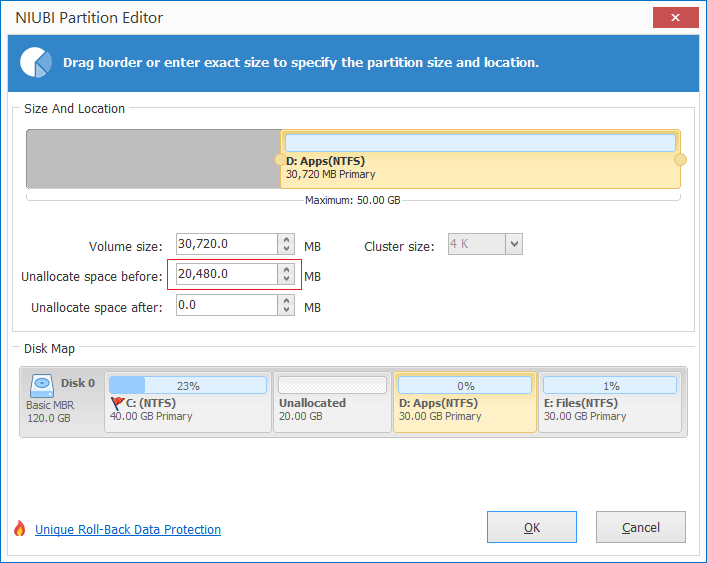
Step 2: In the pop-up window, drag the left border rightwards to generate free Unallocated space.

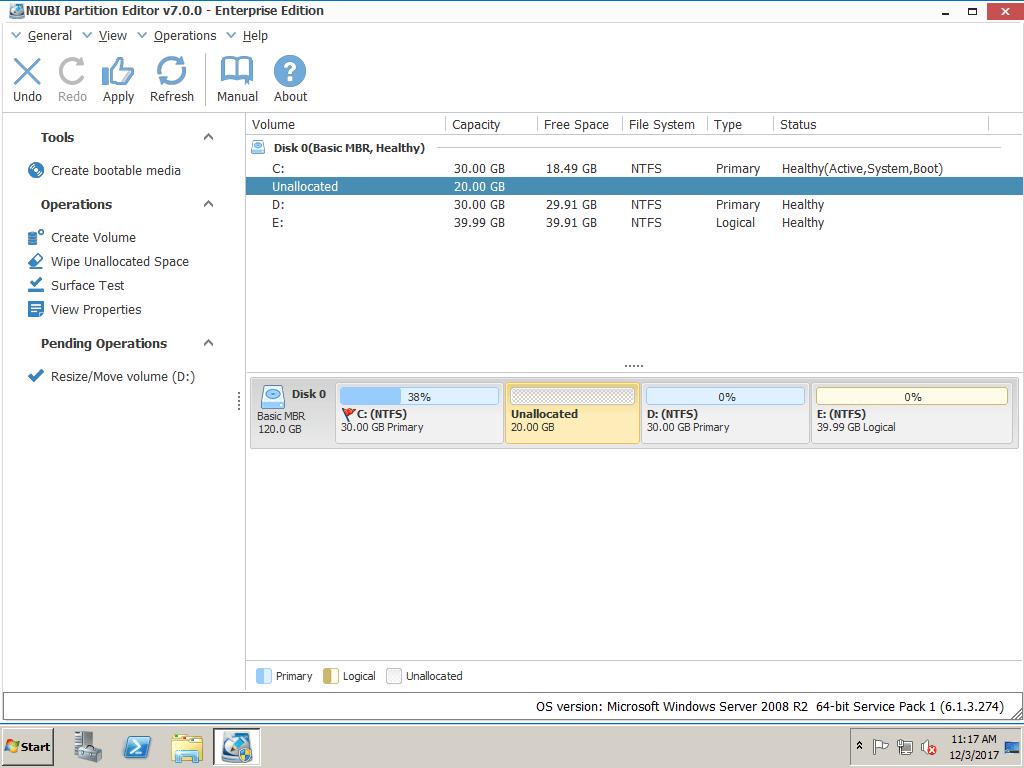
Click OK and back to the main window, where 20GB Unallocated space created behind C: drive.
Step 3: Right click C drive and select “Resize/Move Volume” again, in the pop-up window, drag the right border rightwards to hold the Unallocated space.

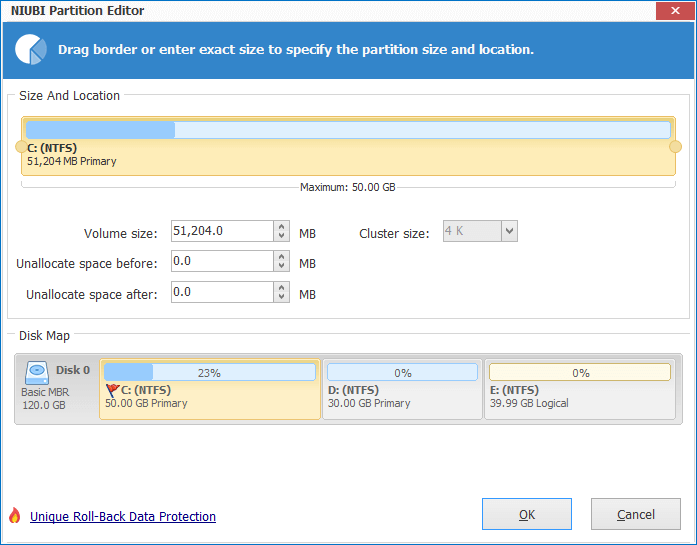
Click OK and back to the main window, where C drive extended to 50GB by holding the 20GB free space from D. Press Apply on top left to execute, done!
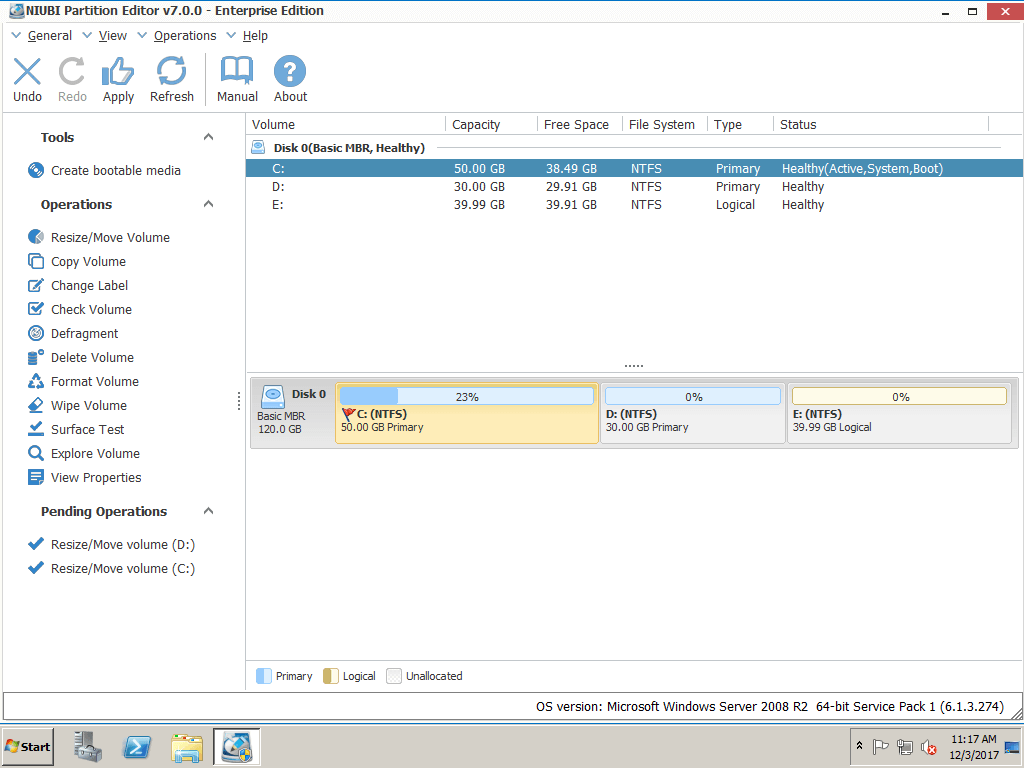
If there is not enough free space in D, you may get free space from other volumes from the RAID array.
Video guide to shrink and extend partition on RAID 5 array:
Pay attention to RAID 5 data safety
The reason to use hardware RAID 5 array is getting the best balance between data safety and disk space usage. You’d better pay more attention to data safety than personal computers.
Different with the read-only software, the partition software will move files and modify the parameters of disk, partitions and all files. A bad designed software is very likely to cause system failure or data loss, especially when there are large amount of files in the partition that you want to resize, low server memory or high CPU usage rate.
To resize RAID 5 volume, I always recommend NIUBI Partition Editor. Better than other tools, it integrated unique Roll-Back Protection technology, which is able to roll back the server to the status before resizing, even if power failure or any other hardware issue occurred during resizing. So Operating System and data always keep intact.
Furthermore, its unique file-moving algorithm helps resize partition 30% -300 faster than any other tools, which is strictly tested.